A bigger way to look back.Photos. Videos. Good company.
One gallery. More possibilities.
Android TV
Phones & tablets
PC web browser
NAS & shared folders
Make yourself comfortable
Your gallery. Easy on every screen.
Browse thousands of photos and videos by date, place, or what’s in the picture. On your TV, computer, or phone, get to the moments you want without scrolling through everything.
01 / ON YOUR TVBrowse with your remote
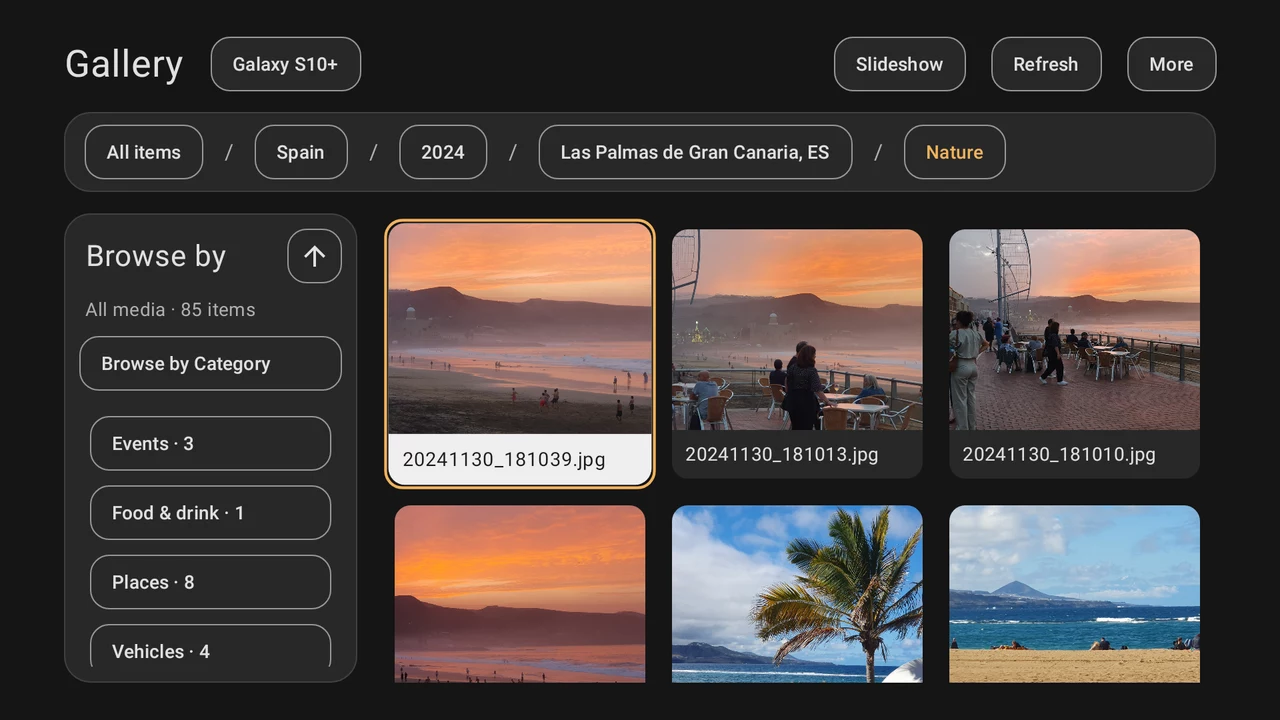
Your photos on TV. You hold the remote.
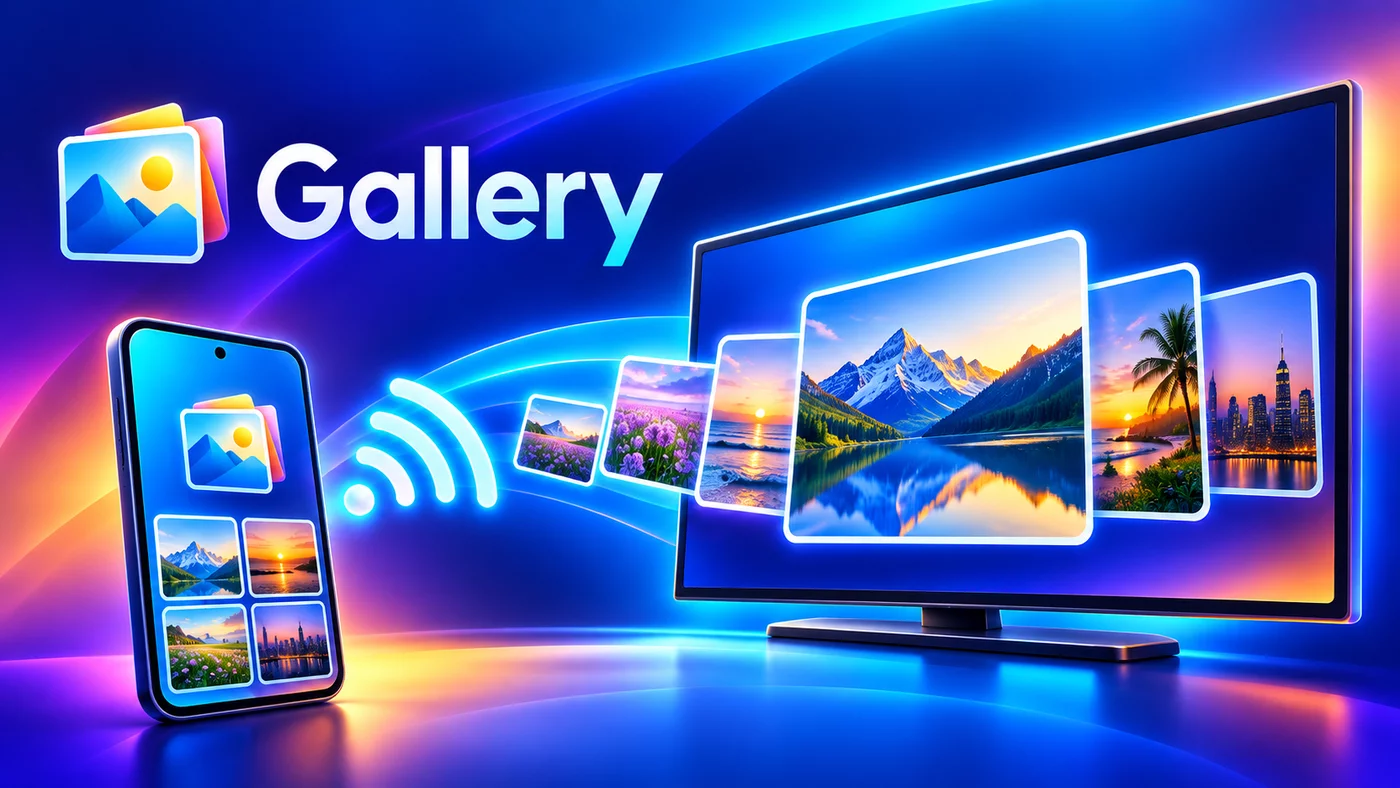
Open your phone’s gallery on Android TV over your home network. Pick a trip or a year, view photos full-screen, play videos, or start a slideshow for everyone to enjoy.
Gallery on your phone + Gallery on Android TV. No screen mirroring needed.
02 / ON YOUR PHONE
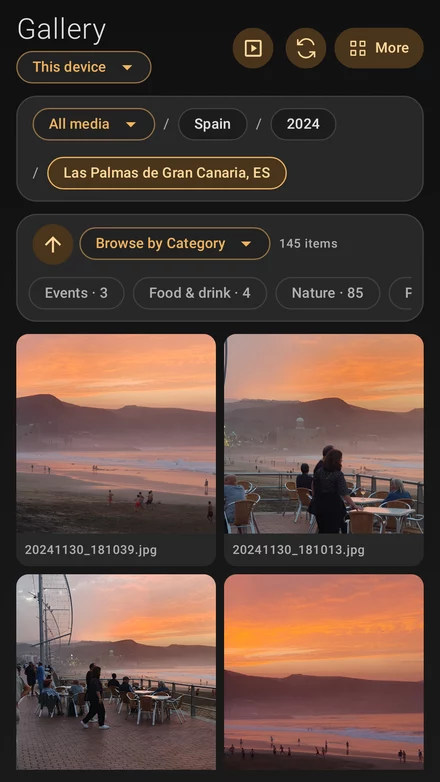
Find a moment. Skip the long scroll.
Narrow your collection by date, city, or photo category. Swipe through photos, zoom in, and play videos right on your phone.
03 / ON YOUR COMPUTER
Browse in a bigger window. Download the originals.
Open the address shown on your phone in your computer’s web browser. Browse and filter your gallery, then download one photo or all matching photos and videos over your home network.
No USB cable. No desktop app.
Find it your way
Remember the place? Start there.
Choose a country or city, narrow it to a year, then add a category such as Nature or Food & drink. Combine filters in the order that makes sense to you.
A trip, narrowed down
Spain
2024
Las Palmas
Nature
A few choices bring the photos you want into view. Your original files stay in their folders.
Place filters use saved location information. Optional AI categories group photos by what’s in the picture, with analysis on your device.
From phone to TV
Three steps to a bigger view.
Install Gallery on your Android phone and Android TV. Connect both to the same home network, using Wi-Fi or Ethernet.
01
Share from your phone
In Gallery, open More → Start sharing. Keep this screen open while you browse on another device.
02
Connect your TV
Add an Android gallery as a media source on your TV. Select your phone and enter the six-character pairing code shown on it.
03
Browse with your remote
Choose photos or videos and explore your collection. Gallery remembers the pairing; next time, start sharing on your phone and open its saved gallery on TV.
Using a computer? On the same home network, open the address under Open on a computer on your phone’s sharing screen. Enter the displayed access code in your browser, and keep the sharing screen open until browsing and downloads finish.
Beyond your phone
Browse your storage. Keep a copy.
Use the computer or network drive you already have. View the photos stored there, back up your phone’s collection, and make smaller video copies.
Shared folders. A familiar gallery.
Add a shared folder from your computer or a NAS — a storage drive on your home network. Browse its photos and videos on your phone or TV, without copying the whole collection onto that device.
Windows & NAS shares · SMB2 / SMB3
Your backup. On your own storage.
Back up a local collection, or use filters to choose a year, trip, or category. Save copies to a shared folder and optionally organize them by month or day. Run a saved task again to include new matching files and skip recorded completed copies.
Start it when you choose · Keep the backup screen open
Smaller videos. Fewer separate clips.
With Gallery PRO, create compressed video copies or combine several clips into one video. Choose a smaller file size or higher quality, on your device or as part of a backup. Your original videos stay untouched.
Video compression & merging · PRO
From backup to big screen
Add your backup folder as a media source in Gallery on your TV. Include places and photo categories when backing up to browse with that information later, too.
So much included
Almost all features are free.
Enjoy your gallery on your phone, TV, and computer. Find photos faster and keep a backup on your own storage — all with the free version.
TV sharing & slideshows
Computer browsing & downloads
Date, place & AI photo categories
Shared folders & original-file backups
An optional upgrade
More galleries, ready to open.
Regularly browse photos from several phones or shared folders? Consider PRO to keep them all saved and easily switch between them, without adding them again.
PRO adds unlimited saved galleries, network storage sources, and backup tasks, plus video compression and merging.
Your photos and videos go directly to the devices and shared folders you choose. Gallery doesn’t upload them to our servers or cloud storage. Optional AI photo categories and place lookup run on your Android device.
No cloud photo account neededOn-device photo analysis
A few things to know
Good questions. Practical answers.
Getting connected, finding photos, and keeping a backup — explained.
You need an Android TV or compatible Android TV box that can install Gallery from Google Play. Install Gallery on both your phone and TV, connect them to the same home network, and pair them using the code on your phone.
You browse with the TV remote. This connection uses the Gallery app on your TV, rather than screen mirroring or Chromecast casting.
Do I need the internet, a cable, or an account?
You don’t need a Gallery account, a cable, or a cloud photo service. Local photos can be viewed offline. Phone-to-TV sharing, computer browsing, and network storage access need your devices to be on the same reachable home network, but don’t need an internet connection to transfer your media.
Does my phone need to stay open while sharing?
Yes. Keep Gallery’s sharing screen open and the phone connected while viewing its gallery on TV or in a browser. Leaving that screen or putting the app in the background stops sharing. Keep it open until computer downloads have finished, too.
Gallery remembers paired Android devices. Start sharing again on your phone and open its saved gallery on your TV. A browser may ask for the current access code when you reconnect.
Can I browse and download photos on my computer?
Yes. Start sharing on your phone, open the address shown under Open on a computer in your computer’s browser, and enter the access code. Both devices must be on the same home network.
Browse by date, place, or available categories. Download one original photo or video, or all files matching your filters. No desktop app is needed. For multiple downloads, your browser may ask you to allow them; check its download list for completion.
What if my TV or computer can’t find my phone?
Check that the phone’s sharing screen is open and both devices are on the same home network. Guest Wi-Fi can keep devices from connecting to each other.
On TV, try Connect with code using the connection code shown in the phone’s instructions. On a computer, use the current address displayed on the phone. If a pairing code has expired, generate a new one.
How do AI photo categories work?
Turn on AI image labeling in Settings to group photos into categories such as Animals, Nature, Food & drink, and Documents. Analysis runs on your Android device while the app is running; photos aren’t uploaded anywhere, they are processed locally on your device.
Large collections take time to analyze. You can pause and continue later, and combine completed categories with date and place filters.
Why do some photos have no city or country?
Place filters use location information saved with the photo or video. Enable Use photo locations in Gallery’s Settings and allow time for processing. Files without accessible location information won’t automatically appear under a city.
Also check that location tagging is enabled in your camera app’s settings. Depending on your camera, this may be called Save location, Location tags, or GPS tags. Allow the camera app to access your location when prompted. This lets it save location information with future photos; it won’t add locations to photos you’ve already taken.
For eligible photos with a missing place, you can use Set location to choose a city in Gallery. This updates the gallery’s organization without rewriting the original file.
Can I view photos stored on my NAS or computer?
Yes. A NAS is storage connected to your home network. Add it, or a shared computer folder, as a NAS / SMB media source. Gallery supports SMB2 and SMB3 shares, including compatible NAS devices and Windows shared folders. Enter the folder’s login details if needed.
Your storage must stay available while you browse. You can enable place and category analysis for a NAS source separately. To browse it on TV, connect Gallery on the TV directly to that shared folder.
How do backups work? Do they run automatically?
Choose a local storage source and use filters to select the collection you want to back up. Pick a shared computer or NAS folder as the destination, review the options, and start the backup. Keep the backup screen open until it finishes.
Saved tasks remember your choices, but you start each run yourself. Later runs include new matching files and skip copies already recorded as complete. After an interruption, run the task again; completed copies are kept and an unfinished file starts again.
Can I view a backup on TV without my phone?
Yes. Add the backup’s shared folder as a media source in Gallery on your Android TV. The computer or NAS holding the backup must be available, but your phone doesn’t need to be sharing.
When creating the backup, you can include photo locations and categories so Gallery can use that information when browsing the backup.
Will Gallery move or change my originals?
Browsing by date, place, or category leaves your files where they are. Backups create separate copies. Video compression and merging also create new files and keep the originals.
Deleting a local photo through Gallery removes that original after confirmation. It doesn’t delete an existing NAS backup. Backups don’t synchronize deletions between devices.
Does video compression free up space automatically?
No. With PRO, compression creates a new video copy and leaves the original in place. You choose the balance between file size and quality. Results depend on the video and your device; an already compressed video may not become smaller.
Check the new video and your backup before deciding whether to delete an original yourself. You can also combine selected local clips into one video, or compress and combine videos during a backup.
What’s included in Free, and what does PRO add?
Almost all Gallery features are free, including browsing, filters, AI photo categories, slideshows, phone sharing, computer browser access, and original-file backups. You can save one remote Android gallery, one NAS browsing source, and one backup task.
Consider PRO if you want several phone galleries or shared folders saved and ready to open, so you can switch between them without adding them again. PRO includes unlimited saved Android galleries, NAS sources, and backup tasks, as well as video compression and merging. See the app for available purchase options and pricing.
How does Gallery handle my photos and privacy?
Gallery doesn’t upload your photos or videos to our servers or cloud storage. Sharing, downloads, and backups send media directly to the devices and folders you choose. Optional photo analysis runs on your Android device.
Share only with people you trust: filters narrow what they browse, but don’t restrict their access to just that selection. Computer sharing uses a local HTTP connection, so use it on a trusted home network.